Xbox One: 12 Cool Tips, Tricks & Secrets You Must Try

Still on the fence about Microsoft's latest? You won't be after this.

Microsoft's living room-slaying behemoth may not be the voice-activated powerhouse it was first purported to be, but that hasn't stopped thousands of fans snatching up the new hardware regardless. What they found underneath all the bells and whistles is a very solid machine, complete with a slew of brilliant iterations on both the original Xbox and the 360's tech when it comes to usability. As any who have waded through the miasma of bad press surrounding the Xbox One can attest, its former public perception is nowhere near representative of its prowess as a real contender for the best on the market right now. And although it took getting rid of the Kinect as a packaged extra for the majority to see that, there's a slew of awesome features present that would turn heads either way. The whole "Here you go, you guys figure it out!" nature of the PR push that's emerged alongside both the Xbox One and PS4's has provided many rewarding moments as fans discover features that haven't seen much coverage, but considering the amount of insanely cool things the PS4 is capable of that hardly anyone knows about - the same is also true for Microsoft's latest. So, for a spot of fun like in the other console list, give yourself a starting score of zero and add a point every time you already knew something - let's see who out there knows Microsoft's hardware about as well as the guys who designed it.


12. Record Game Clips With The New SmartGlass App

Why both Microsoft and Sony's app-based features are about as well known as the location of Miley Cyrus' dignity is a cause for concern, as both companies have first party apps presumably designed to combat the Wii U's controller design - only for the console to bomb and both of them to almost ditch supporting the idea. Still, the green giants themselves have continued to roll out a slew of updates for their SmartGlass app, one of the latest finally being a workaround to talking to your Kinect whenever you want to record the last few seconds of your game. Quite a simple one, just connect the app to the console by heading to My Games & Apps > Settings > Preferences and dive into SmartGlass Connections to get set up. The app will then spit out some details in real time that relate to the console, one being the game that's in the drive - meaning if you tap on the 'Record That' prompt, the last few minutes of gameplay will appear back on the dashboard to edit. Very cool, and gets around having to talk to the console if you don't want to.

11. Calibrate Your Kinect's Microphone Properly
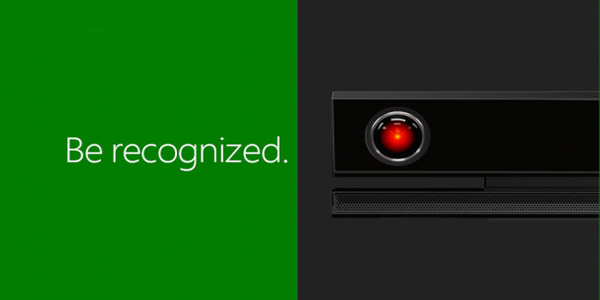
Whisper it, but the Kinect actually isn't all that bad - providing you set the thing up properly anyway. There's a myriad of things that can get in the way of the machine knowing you're giving a soldier an order in Ryse versus say, loading Volgarr the Viking, but to ensure that never happens it's best to calibrate the Kinect effectively with this neat tip. Simply urn your TV's speakers as far up as they'll go during the detection step of the Kinect process, as it'll then note they're too loud. Of course you then turn them back down gradually so the system recognises this louder environment as its baseline listening level - making the microphone far more sensitive to your commands in the future. Hopefully this will get you around the many instances of having to repeat yourself multiple times for commands to register to work.

10. Grab An External Hard Drive For Storage

One of the biggest oversights so far with both the PS4 and Xbox One is the fact that neither Sony and Microsoft have realised that with a 500GB hard drive and an average game size of around 30-50GB, both consoles' memory tends to fill up, fast. The solution is either cloud storage - which plenty people don't even believe or trust is reliable - or nabbing an external hard drive and formatting it through the console. As soon as you plug one in the Xbox will take over and format it to work with your console, the only requirements are the size of your external device being greater than 256GB, and to be USB 3.0 equipped (nearly all new external drives are).

9. Refresh Your Home Screen To Keep Tiles Up To Date
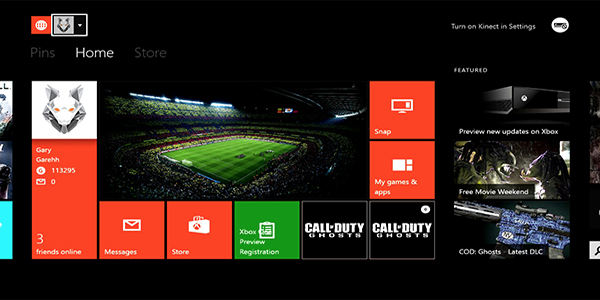
With the amount of apps you'll be downloading and constantly updating across your time with the console, sometimes it's worth doing a bit of spring cleaning to manually refresh the list and make sure the most recent version is visible. When on the home screen, hold down both LT and RT and then press Y and you'll force the system to refresh the dashboard. It's very similar to the 360's bringing up of the Home menu before also hitting Y to do the same, and you can always make sure the version of the dash's tiles you're looking at are the most recent.

8. Charge Controllers With Your Phone's Cable

Although thankfully the Xbox One comes with a play n' charge kit (all 360 owners know the bane of having to purchase one separately) you might have assumed that with it being a piece of Microsoft kit, it'll only work with first-party devices, or the Xbox itself. Not the case, as providing you've got something with a Micro USB connection on one end to plug into the controller (and a plug on the other) you'll be able to leave it charging without going through the console. Pretty nifty, especially for those power savers among us that don't like anything being active if it's not for a particularly worthwhile purpose.

7. Use The Controller's Bumpers Correctly

More regular or seasoned gamers may scream this is very obvious, but the redesigned Xbox One controller regularly comes under fire from new adopters for daring to switch up the near-perfect design of the 360 pad - or in particular, the bumper buttons. https://www.youtube.com/watch?v=RF-smJELJ4A Basically as the bumpers themselves are raised far more than before, many gamers were prodding down on them from above, causing much discomfort as it's hardly a finger-arrangement that feels natural. However as is pointed out in the above video, there's a far simpler - and far more ergonomic - way of holding the pad that'll suit you down to the ground if you're playing for an extended amount of time. Naturally this might be the most obvious thing in the world if you've been gaming for years, but considering the huge amount of misinformation that's out there doubled with all the new console Xbox One owners out there who are still getting used to the system, it's definitely worth pointing out.

6. Check The Controller's Battery Level

Something that wasn't part of the UI on launch has since been added in - the ability to get a feel for when your controller's going to die, although it's about as accurate as the 360's was, fluctuating from two bars to zero within minutes and back up again after only seconds of being plugged in. Still, to see what's going on simply back out to the dashboard with a prod of the Home button, and then hit it again to see a small icon in the bottom right showing the current battery life of the controller you activated the prompt on.

5. Know How To Do A Full Reset

Occasionally with these new machines there'll be some instance of the hardware trying to juggle social media feeds, a particular game's level and an app all at the same time - only for it to buckle under the pressure. Luckily although the controllers don't feature a full custom reboot outside of taking the batteries out, if the console itself has totally locked up, simply touch and hold the main power (the logo) button for over 10 seconds, powering the system down completely and clearing the cache - hopefully solving your problems. As the Xbox One likes to power down into 'Instant On' mode instead of anything else, if you tweak the Power & Startup inside the Settings menu, you can get the system to power down properly every time - although it will mean things like Cloud saves and a longer boot-up time await you on the other side.

4. Get Used To The New Menu Button

In a weird move on Microsoft's part, the former Home button's functionality has now essentially transferred across to where the Start button was - now called 'Menu'. Pretty much everything you previously associated with the 360's orb-like button is on this newer one, making for a heap of apps appearing to have hardly any functionality until you tap this and bring up a host of options. Think of it essentially as the console equivalent of a right-click or two-fingered tap - the Internet Explorer app in particular feels pretty weak until you realise you can manage tabs and page history by going through this menu first. Give it a shot in any app and see what options pop up - this switch of what was a button's designated function is one of the most off-putting things about the Xbox One to those who haven't gotten to grips with how it really works - and it's time they realised how.

3. Register Your Console With Microsoft To (Hopefully) Prevent Loss
Although many of us never bother to fill out those insurance-style register forms you get with any new piece of kit, Microsoft actually have a pretty cool system in place to prevent any losses or theft on your part if something should go wrong. Follow up on the documents included with the console, and say it happens to get stolen or misplaced, you can then ring them to perform a GPS search that'll pick up on anyone else trying to to access the console's online features.

2. Get Help With Achievements From Within A Game

Last year's latest big update made double tapping the Home button a shortcut to Snapping apps or other programs to the side of the screen - one of which being the much sought-after return of viewing your Achievements easily and quickly. However as is the nature with many of these, they're very hard to get. So say you've booted up a game have Snapped the Achievement app, after perusing a handful you want to then go after selecting an individual one will prompt an option to 'Search for achievement help'. This then boots the Internet Explorer app within your game window, putting the game's name and the achievement label into a google pre-search, the results loading for you to check out. It's a really cool feature and assumedly means Microsoft are okay with you looking up guides and wikis, as after all, it's still you that has to perform the achievement to get the points anyway.

1. Calibrate The Console's Visuals To Your Specific TV

This is a cool feature worth pointing out firstly because hardly anyone bothers to delve into the settings to tinker with the myriad of sliders and options within, and secondly because thanks to the dashboard's voice-activated UI, until recently it was very hard to actually locate the Settings option at all. Head over to the home screen, tap the Menu button and dive into Settings, then Display & Sound to find a step-by-step process to create an image that plays to your individual unit's strengths. It might not sound like anything groundbreaking, but this is one area where Microsoft completely dominates the PS4, as you essentially have a built in app that'll guide you through a process many owners easily overlook - making sure everything looks as good as it can on your specific setup. What other Xbox One tips, tricks and secrets do you know of that are worth sharing? Let us know in the comments!

In this post: 
XBox One
 
Posted On: 
Gaming Editor
Gaming Editor

WhatCulture's Head of Gaming.