10 Things You Didn't Know You Could Do With Your Nintendo Switch
Increase performance on all games? DONE.

A truly gorgeous little system, Nintendo's Switch continues to sell at a rate of knots that could supersede the Wii if it continues (and if Nintendo supply retailers with more units, of course).
Early reports show 1.5 million of us have hoovered up the world's first portable home console so far, and are currently getting stuck into everything from the immaculate Legend of Zelda: Breath of the Wild to the multiplayer delights of Snipperclips and 1-2-Switch, and even a few lightning-fast laps of anti-grav racer, Fast RMX.
Indeed, from early Game of the Year contending triple-As to a healthy bout of indies and showcases of the hardware itself, Nintendo's minimalist approach to software has paid dividends, as if nothing else, every owner is more than familiar with what's on offer.
But that's software. What about the hardware? You know your Switch can let you game on the go, and about giving one half of the controller to the person next to you for some instant multiplayer, but what else?
What other nifty features, tips and tricks does the Nintendo Switch have under its sleeve, that Nintendo themselves have left it for us to discover?
10. See How Long You've Been Playing
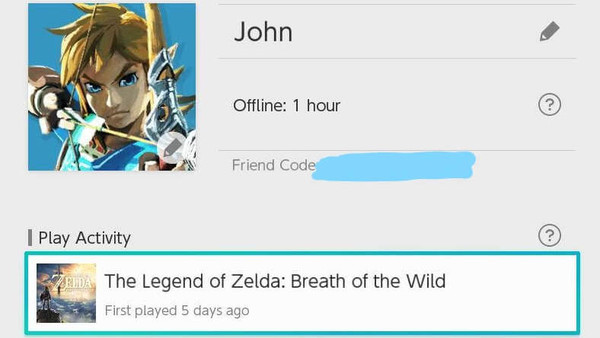
Before the latest software patch amended this to a console feature, the only way to view time spent playing a game was through the Parental Controls app, which would show you a continually updated list of which accounts had accessed what, and for how long.
No more, as if you head into your Profile menu - just tap up on the stick to highlight your portrait and click in - you'll find a nicely updated breakdown of which games you've played, alongside a friends list accompanied by small notes detailing how and when you met them.
Note: Game-related details don't show until after 10 days of play (I've no idea why), so don't worry if any newly-bought game doesn't show specifics immediately. Even on longer-plays, the system weirdly defaults to "X hours or more", but hey, it's a start.
9. Reduce Frame Rate Issues On All Games

When it comes to Zelda, its larger frame rate issues stem from the game struggling to process asset-heavy areas like dense forests or luscious expanses of waving grass and particle effects - something that is entirely game-related.
That said, if you've noticed play be sporadically interrupted for a second or two out of nowhere, or are noticing frame rate 'hiccups' in that or any other game regardless of what's happening on screen, there is a solution.
Weirdly, the issue appears to be related to the system continually searching for wi-fi access points, even after it's established a connection.
Being the Switch is continually doing this in the background of any game or process, you can remedy it (until Nintendo release a patch, anyway) by heading into your System Settings and turning off the 'Auto-Connect' option, or enabling 'Airplane Mode' when playing handheld.
Chances are, you're only going to be connecting to a couple of hotspots anyway (your home, perhaps a campus or office) so just hop between connections manually and you'll see the vast majority of these issues disappear.
8. Find The Secret Pro Controller Message
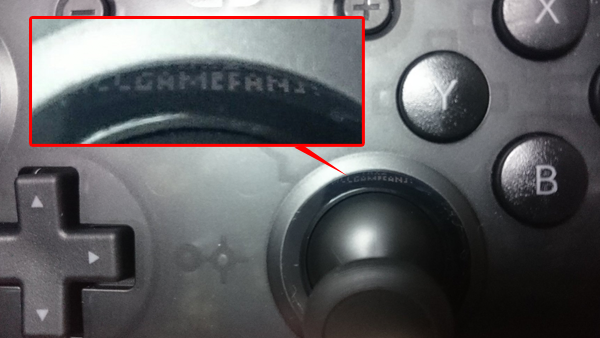
Providing you picked up the ludicrously expensive Pro Controller in the first place, it's not only going to make something as intense as felling Ganon in Breath of the Wild more easy to get to grips with, but Nintendo want to personally thank you for going the extra mile (and lining their pockets with $70).
Tucked away - and I really do mean right up in there - inside the recess of the right analogue stick, there's a digitally printed message that reads, "thnx2 allgamefans!"
The case for the Pro Controller is already a callback in itself to the N64's 'see-through' pads, and although its price is a steep ask - especially as a manufacturing shortage has ramped up second-hand cost to ludicrous heights - these sorts of details are precisely why people love Nintendo as a company in the first place.
7. Visit Nintendo Eshops From Other Countries (And Download Free Demos)
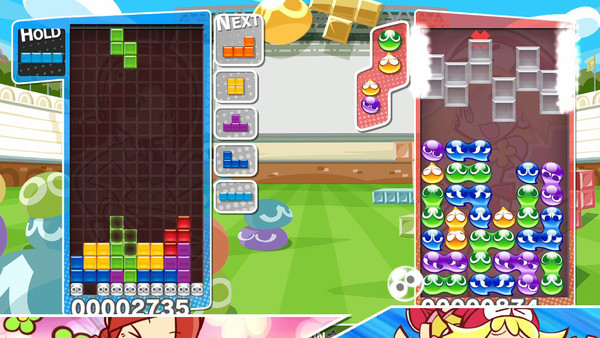
Thankfully, unlike the PS4 and Xbox One's digital storefronts, the Switch can play digital games and demos from anywhere in the world. Both Sony and Microsoft's systems allow physical transatlantic playback, but not the ability to play from foreign storefronts - which is where Nintendo have a neat leg up on the competition.
First, say you want to hop into the Japanese eShop (and you should, there are a ton of awesome demos on there) you'll need to tell your console you're, well, from Japan.
Thankfully it's very easy, and is literally as simple as creating a new Nintendo Account and setting 'Japan' as your country of origin in the drop-down box.
From here, just open the eShop as normal on your new account, and you'll be taken to the respective storefront of that region. Demos are fair game (I recommend the excellent Puyo Puyo Tetris), and many developers actually have English language options, despite their games not being available in the West.
However, if you'd like to purchase anything, you'll have to first get ahold of a Japanese/region-specific gift card, as your region-locked credit card of choice won't be authorised.
6. Turn It Off (NOT Just Sleep Mode) To Safely Remove SD Cards

A very simple feature to overlook, the Switch promotes that 'mobile phone' mentality of being locked into a cycle of sleep modes and overnight charge cycles, never turning the system off to clear its cache or remove pent-up (extremely rare) static electricity.
To that end, if you're putting the Switch into storage or know you won't be using it for a pronounced amount of time, hit the power button on top of the tablet itself, NOT the Home button on the right Joy-Con, and hold it for five seconds.
Doing so powers the system off completely, giving the Switch some much-needed time to rest, but also means you can remove or swap out SD cards in safety, knowing the console isn't trying to access or cache any part of the data therein.
There are many benefits in terms of sheer longevity to turning off devices that otherwise rely on sleep modes, so make sure to do so whenever feasible.
5. Enter 'Recovery Mode' To Update, Restore Save Data Or Wipe The System
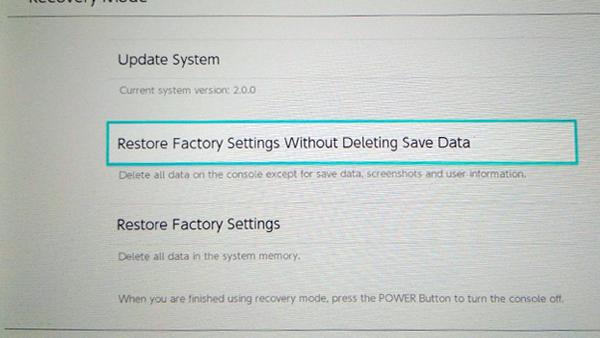
If the worst happens and your console does start experiencing problems when booting up, know there's a 'Recovery Mode' on hand to help restore your data, update the system to start afresh with a new firmware update, or provide a full factory reset if you're thinking of selling/gifting it and want your data removed.
First, you'll need to turn the system off altogether (NOT sleep mode), by holding the power button on the top for five seconds like in the previous point. Then, hold all three top buttons at once (power and BOTH volume keys, as weird as it feels), and then let go when the Switch logo appears.
This recovery menu can sometimes get your saves and Switch functionality back, depending on what weird bug or issue was causing it to not load in the first place.
For some bizarre reason, Nintendo aren't letting players back up their save data on a cloud service or external SD Cards when moving between systems, and in fact, if you insert an SD full of saves into another system, the only option you'll be presented with is to wipe the card before continuing.
So much for 'sharing the joy'.
Still, all of this puts the onus on maintaining your Switch and knowing what to do if something goes wrong. If your console is acting strangely, try the 'restore without deleting save data' option, and you might just get back to normality.
4. Make Your TV Automatically Turn On When Your Switch Does

This relies on having a relatively new television with HDMI-CEC functionality (the option for a TV to recognise when a device is trying to communicate). Luckily the vast majority of televisions have this, and you might already be used to the idea, as both the PS4 and Xbox One have options that let them control a variety of TV functions.
On the Switch it's a little different, as there's no console setting for HDMI-CEC, yet it can still control your TV. Basically, the Switch is forever knocking at the door, you just need to tell your TV to answer, which many by default, many units already do.
After enabling HDMI-CEC on your TV (or just try the following anyway, as some TVs are like the Switch and assume people want it enabled by default), either slot the Switch into the dock when a connected set is on standby, or do the same when you're watching through another input.
Your TV will either turn on automatically and jump to the appropriate input, or will switch to the correct channel, all just from slotting the Switch into the dock.
3. Recreate The Switch's 'Click' Sound Effect

The Switch's 'click' is this generation's 'iPhone lock noise' - a supremely slick soundbite that immediately makes you think of the product, mostly thanks to appearing in the console's marketing at every turn.
But where is it on the system?
It would've made perfect sense for Nintendo to engineer a way for the Joy-Cons to make the noise physically whenever you slot them into the controller grip, but to get the exact noise from the system's various adverts, you need to slot the Joy-Cons onto the side of the tablet, after it's been turned on and is running a game.
Doing this while playing gives a white 'burst' effect to the side of the screen as the Joy-Cons lock in place, accompanied by - finally! - the Switch's 'switch' noise.
Perfect.
2. Instantly Create & Share Memes
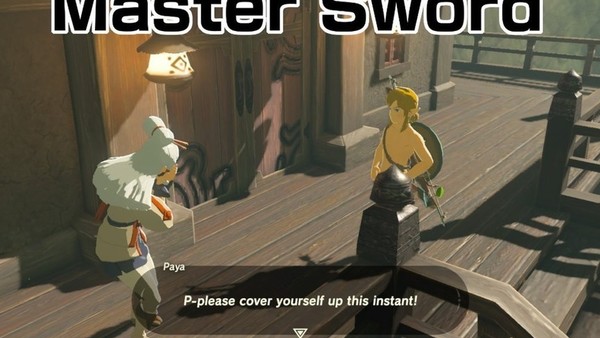
Do not underestimate the sheer awesomeness of the Switch's screenshot functionality. Where on the PS4 and Xbox One you'd have to boot up separate apps/software to tuck into editing them, Nintendo have allowed for the addition of text whenever you hop into the Album editor.
First make sure you've tethered either your Facebook or Twitter account to your Nintendo Account through the System Settings, take whichever shot you'd like using the dedicated button on the left Joy-Con, then hop back into the main menu to get into the album.
From here - and it's all too easy to skirt over the 'Edit' prompt, as we tend to on other systems - press the corresponding button to open up the option to add text. It's a simple inclusion, but have you seen the proliferation of image-sharing sites across the last few years?
Be it Imgur, 9GAG, Reddit etc., getting text-based memes online opens up the sharing potential of the Switch's library tenfold.
Now, get captioning!
1. Play Online For Free
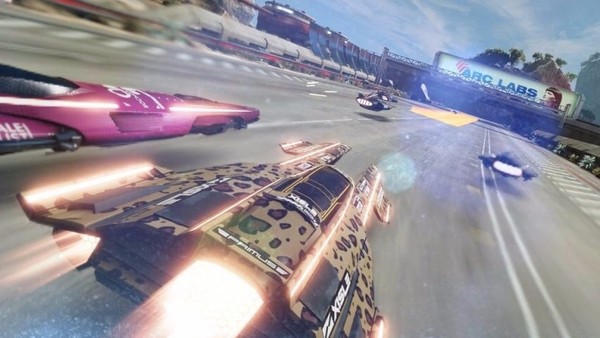
Another thing that's very easy to jump over during the onslaught of tutorial-pops and news updates that comprise booting up a Switch for the first time, is the fact Nintendo are offering online play across all games for free.
This will be the case until some point in 'Fall 2017'.
Nintendo appear to be trialling out their various online components, and whether that's the immaculate Fast RMX or the upcoming Splatoon 2 (of which has a demo available very soon), don't forget to make the most of a completely free online service while you can.
--
Are there any other Nintendo Switch features I missed? Let me know your own workarounds and secrets in the comments below!