Xbox One: 10 Brand New Tips, Tricks & Secrets You Must Try
From free games to the best Xbox Live connection, controller shortcuts and more.

10. Learn How To Download Your Free Xbox 360 Games
Microsoft made a pretty big song and dance about their backwards compatibility functionality, and although you just need to throw in an old disk from the approved online list to play your old favourites, they've added that every upcoming 360 title on the Games with Gold program would be playable digitally, too. However, trying to access the older titles through the XO dashboard can be a nightmare, as although they're listed through the standard search functionality, there's no download link or even a price attached - instead you'll just see 'Bundle Only' listed where the download link should be. It can be very confusing, and it's down to Microsoft's emulation workaround. See, the games aren't available for download through the Xbox One's storefront for whatever reason, so you have to boot up the Xbox Store page either through the Internet Explorer app or on another device, log in and set them off downloading. Once they're activated on your account, heading to the 'Games & Apps' section and scrolling to the right will show a 'Games available' tab, and inside will be your 360 titles. Phew. Bonus tip: If you're after something a little newer, a Gold Xbox Live subscription will net you the free version of any Xbox Preview game, Project Spark's ongoing public beta and even a great version of Killer Instinct that has one character but still lets you go online, complete tutorials and fight to your heart's content.9. The New 3.5mm Controller Adapter Works With Regular Headphones

8. Use SmartGlass To Navigate Various Exclusive Features
Mobile apps tend to fluctuate in usability depending on how much the phone needs to be constantly left on, but both the official PlayStation app and Microsoft's SmartGlass (one they've done a terrible job in promoting or showcasing) are actually very useful. It's free on both iOS and Android, and once you've tethered it to the console through the Settings menu, it'll let you trigger manual prompts to record video, track achievements, use the keyboard to enter text and browse the internet far faster and easier. Lastly, the app can be used in the background of every other function, so you don't need to worry about it 'cancelling' anything when hopping between more than one app or game at a time.7. Track Achievements In Real Time

6. Know The New Controller Shortcuts
The new dashboard - named the 'New Xbox Experience' at launch - came with a heft of rearranged icons and menu elements for the basic operation of the console. For the most part it's more of the same, but there are a couple of neat additions that'll let you hop between your content faster than before. One is the back triggers, where the right trigger will jump to your pinned content from the home screen, before the left takes you back to where you started. Second is the shoulder buttons which will hop between the top categories, regardless of how deep you are exploring any particular section. Lastly there's a very cool menu option when you're playing any older 360 game. Simply hit the view and menu buttons (where Start and Back used to be) at the same time and you'll trigger the old 'blade' menu that we loved so much on the 360. It can't bring you 100% functionality thanks to mainly being down to the Xbox One running the 360 architecture inside to play these games, but it's a great nod to the legions of fans that got the brand to where it is today.5. Grab An External HDD For Unlimited Storage

4. How To Get The Best Xbox Live Connection

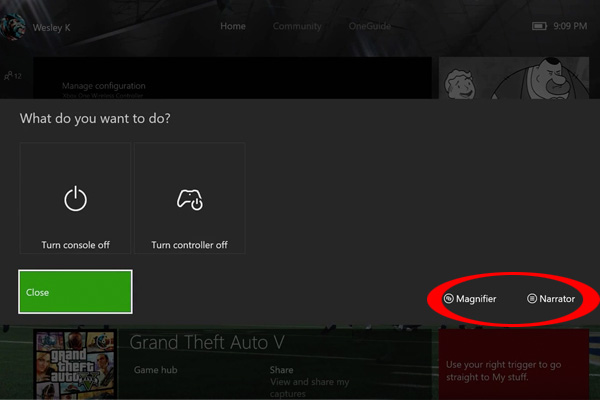
3. Magnifier & Narrator On The Fly
2. Change The Entire Dashboard With High Contrast Mode & Custom Wallpapers

1. Get Achievements On Certain Apps
