Nintendo Switch Tips & Tricks: 8 Features You Totally Missed
Have you seen what the Switch can really do?

Continuing to go from strength to strength thanks to now having no.1 and no.2 Game of the Year shoe-ins exclusive to their system, Nintendo's revolutionary Switch is a major return to form in every possible respect.
Whilst the motion controlled delights of the Wii and the cobbled together experimentation of the Wii U were certainly enjoyable enough, you need only look to the lacklustre reception and implementation of 1-2-Switch to see Nintendo moving on from such a once-profitable gimmick, returning to more fully formed video games.
That said, the Switch has just as many secrets as the Hyrulean landscape or a handful of Mario Odyssey kingdoms. Nintendo aren't ones to release a bog-standard identity-less console, and instead, they've designed something with just as much character as the Kirbys and Warios of this world.
Indeed, 2017 is definitely Nintendo's year, and whilst Sony and Microsoft attempt to turn heads with their half-step consoles that focus on 4K resolutions only a fraction of the populace care about, the Japanese giant have regained their stature as one of the finest purveyors of digital entertainment in history.
Have you seen what the Switch can really do?
8. Remove Your SD Card To Access Captured Pictures & Videos

Somewhat obvious once you start thinking about it, all the various screenshots and videos you can take on the Switch (the latter now being accessed by holding the Capture button) are easily accessible from a removed SD card.
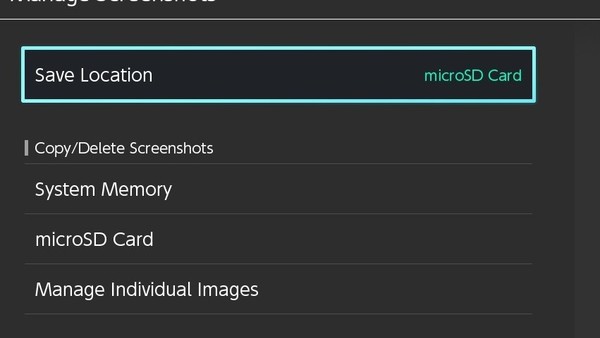
Providing you're not reliant on the system's inbuilt memory and have told the Switch to save all your captures to an external device (System Settings> Manage Save Data/Screenshots> Manage Screenshots> Save Location), simply take the card out and put it in any appropriate reader.
It works wonders if you're looking to export a batch of screenshots for PC/Mac backgrounds or want to edit any clips together for a Youtube upload. Just stick your removed SD card into any device and the requisite images and clips will be ready and waiting.
7. Play With A Fully Supported GameCube Controller

Part of the latest 4.0 firmware update, Nintendo neglected to mention the fact they've literally patched in support for GameCube controllers without telling anyone.
Doable by using the Wii U Smash Bros. adapter that helps convert the GameCube connector to a USB fitting (a sign that Super Smash Bros. Switch or whatever they're going to call it is likely coming sooner rather than later), once you've plugged it in, head over to the "Controllers>Change Grip/Order".
From here just hit L and R on your connected GameCube controller and the Switch will recognise it, re-mapping all requisite inputs accordingly.
Best of all, unlike how the Wii U only supported GameCube controllers for Smash Bros. you can play anything on Switch with this old-school pad.
Ahh, sweet squishy trigger goodness...
6. Press Different Buttons On The Unlock Screen For Different Sounds
Speaking of the Gamecube, that system also had an array of different startup easter eggs depending on whether you were holding down Z on one or four controllers during the boot-up sequence.
On the Switch there aren't any secret animations, but on the "Press the same button three times" screen, don't hit the face buttons and instead use any of the following for some different noises:
ZL: A more mechanical click.
ZR: A clown's squeezy-horn.
Click left stick: A low-pitched... erm, frog?.
Click right stick: A rising two-note chirp.
Why do these exist? Because Nintendo and putting a smile on your face. That's why.
5. Use A Joy-Con As A Controller On Your PC/Mac, Phone Or Tablet
Unlike their supremely unhelpful Youtube policy that'll come crashing down on anyone using more than a few seconds of footage, Nintendo's console persona plays very well with others.
Simply detach either of the Joy-Cons and you'll see.
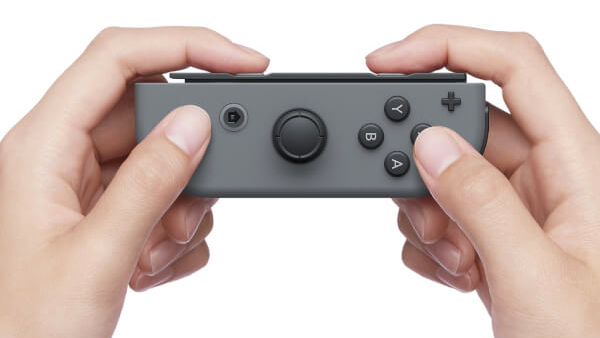
First, look to the black "top" of a side-held Joy-Con and hit the small black button to put the controller in pairing mode. Now, on any device that can search for and pair with Bluetooth controllers, begin looking and you should see "Joy-Con (L)" or "Joy-Con (R)" available to link.
Do so and you've got a very portable, very snug and supremely well made controller for any mobile games, or to use alongside your PC/Mac emulator collection. Of course a sideways Joy-Con loses a row of shoulder buttons, but it's perfect for NES and SNES libraries if you didn't nab either of the Classic Minis.
To re-pair with the Switch, just disconnect from the device and slot the Joy-Con back onto the tablet - the Switch will auto-pair and assign left/right without the need for reconfiguration.
4. Connect Wireless USB Headphones

The jury's out as to whether Bluetooth headsets are better than USB if we're really crunching audio packets and the crispness of signal quality - however, the Switch now supports wireless USB headphones. Again, another feature of firmware 4.0 that wasn't advertised.
Bluetooth users will have to keep waiting, but simply plug in your USB dongle into the side of the Switch dock and that's it, no other setup required. You should see a small "USB" volume bar in the top left corner denoting they're connected, and all audio will then be beamed to your headphones rather than from the system.
Interestingly this also works in portable mode, though you'll need a "USB to USB-C" adapter to plug the dongle straight into the bottom of the Switch tablet.
3. Turn On Your TV Automatically
Chances are you've acquired quite the "media centre" of various consoles, a big ol' TV and perhaps a blu-ray player on the side. All of these can be vying for control at any given time, and it's given rise to many systems - like the PS4 and Xbox One - having the ability to control your TV to ensure their signal appears first.
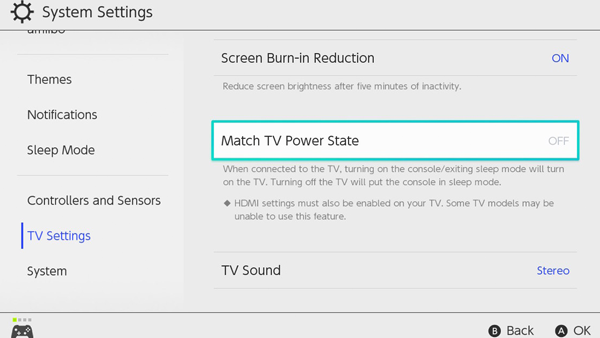
To get your TV and Switch playing nicely together, head into System Settings>TV Settings and set "Match TV Power State" to "On".
This way, next time your TV is on standby and you turn on your Switch, it'll boot the TV up alongside and light up in unison. Neat!
Note: As the Switch tells you on this menu, not all TVs support being hijacked by external devices, so if you're one of the unlucky ones and your set doesn't come on, chances are it's just down to the model type.
2. Charge Other USB-C Devices
I can't think of many instances where you'd need to power something else off your Switch, but it is entirely doable all the same.
Thanks to Nintendo coding the Switch to be rather helpful when it comes to plugging into other devices, connecting it to a Macbook (via USB-C to USB) for example, will see the latter draw power from the console itself.
Essentially turning the Switch into a portable battery pack you can also play games on, if you find yourself caught short on trip and want to prioritise work over nabbing another Power Moon in Mario Odyssey (you fool), have at it.
1. Play A Free Game & Touching Satoru Iwata Tribute
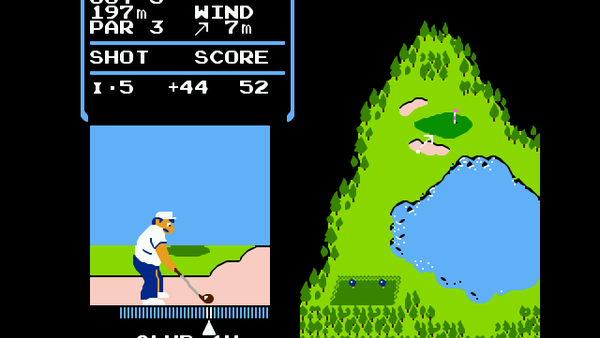
Hands-down the most heartwarming and downright genius feature of the Switch is the inclusion of 1984's NES classic, Golf.
Literally, it lives within the heart of every system for a very special reason: Golf was coded by Nintendo's own dearly missed Satoru Iwata,and you can access it in a way that's masterfully handled.
First, set your console clock to July 11th (the day Iwata passed away in 2015), or wait until that time each year to know that many others around the world are doing the same.
Now, go back to the main menu, hold your Joy-Cons one in each hand, and mimic the "Direct to you" motion that Iwata used to do for many years, seen here:
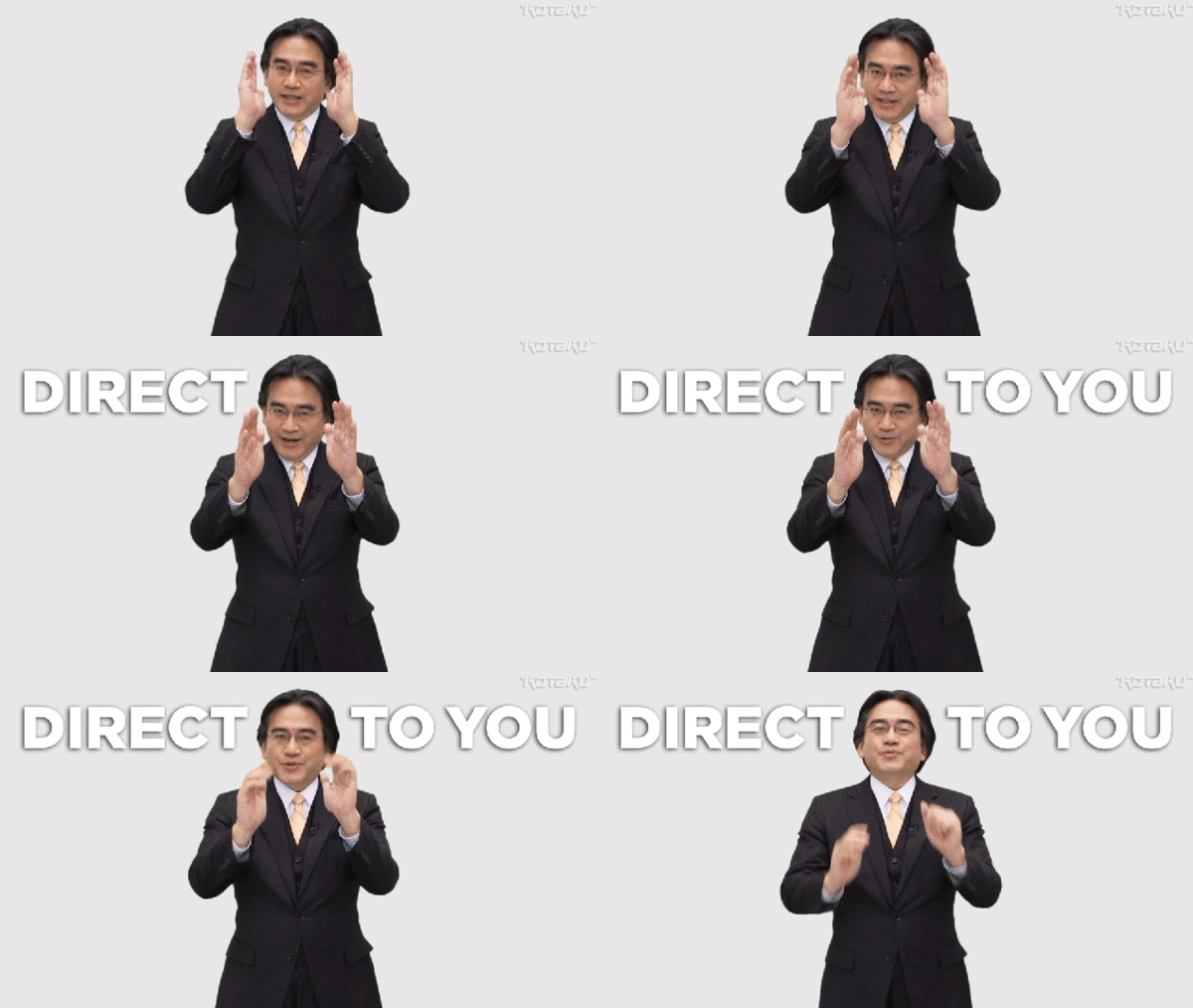
When you get it right, Iwata himself will say "chokusetsu" (meaning "direct") and you'll boot into Golf, where you can play as many one or two player rounds as you like, knowing it's something of a gift from Satoru that the game was even released in the first place.
Best of all, Nintendo even went back and coded motion controls for each swing, ostensibly making this the best "What would Wii Sports look like in the 1980s?" idea ever.
Hint: If you need a specific how-to video guide, check this out.