11 Things You Didn't Know You Could Do With Your Xbox One

Tips and tricks that will help you get the most out of your Xbox One!

Around two years since its launch and the Xbox One has had a strong innings, despite a rocky start. Although sales haven't been quite as strong as their main competitor, the PlayStation 4, the Xbox One has still had an impressive opening to what should be a long, healthy lifespan. Just as much as a games console, the Xbox One has been marketed as an all-in-one system, capable of being the sole hub of entertainment in your living room. With app-snapping, HDMI input and powerful streaming capabilities, the Xbox One has a wealth of handy features on offer. Much like we explored with the PlayStation 4, the Xbox One has a number of features that won't be immediately obvious to every user. Much like the beloved Xbox 360, Microsoft's latest console is jam packed with useful utilities and hidden features. This list takes a look at 11 things that you probably didn't know you could do with your Xbox One console. From ways to further integrate the system with other devices, to methods of customising your console experience even further, each of these entries will help you get the very best out of your Xbox One.

11. Faster Game Installations

The Xbox One requires every game to undergo a mandatory installation before you can play, where you've downloaded from the store or it's on a physical disc. It can be irritating for those used to being able to just insert the disc and go, but it does allow for much shorter loading screens and improved graphics capabilities. If you're tired of waiting around on installations, there is an easy trick that speeds up the process a bit. Simply disconnect from Xbox Live, either by choosing to disconnect from the Xbox One's Network settings or unplugging your Ethernet cable. Once that's done, just run the installation to completion and re-connect to Xbox Live afterwards.

10. Stream Media Center To The Console
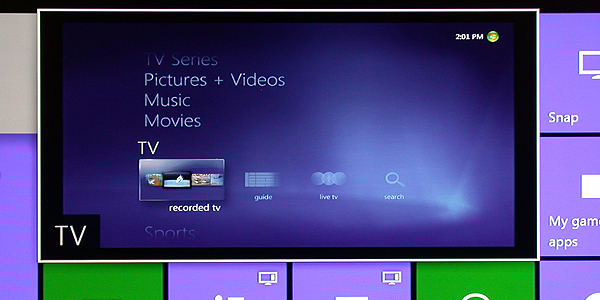
The Xbox One is just as much an all-in-one entertainment system as it is a games console, and as such it has a range of media streaming options. As you might have guessed, Microsoft's very own Windows Media Center is fully compatible with the device. You'll need Windows Media Center 7 installed on your Windows PC or Surface for this to work. First off, check that the device you want to stream from and your Xbox One are visibly on the same network. Ensure that you're Xbox One Preferences have the 'Allow Play To Streaming' support enabled. Finally, just select a local video file on your PC or Surface, right click it, and select 'Play To' then 'Xbox One'.

9. Every Voice Command

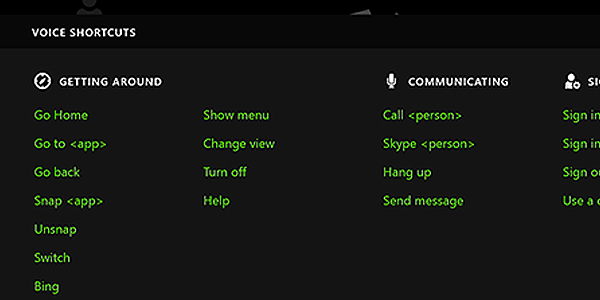
By now, you should probably know that you can control just about everything beyond actually playing the games through voice commands. However, while you've likely got the basics covered, there's a good chance there's gaps in your Xbox One voice command repertoire. If you want to see every command that the Xbox One's Kinect can understand, then simply say the word 'Xbox', and nothing else. After a short delay, a long list of every Xbox One voice command will pop up. They're all sorted into categories like 'Notifications' and 'TV', so if you want to swot up on one thing in particular then go ahead.

8. Snap With A Double-Tap

App snapping is one of the Xbox One's more unique features, allowing users to watch live television while grinding through Destiny or check your achievements without going through a series of clunky menus. Initially, players had to either go to the home screen or use the Kinect in order to snap an app. Back in 2014, the July update introduced a far more intuitive method for all you multi-taskers out there. What this means is that you can be playing a game, then simply double-tap the Xbox button. This brings up a list of snappable apps that you can select from. From there, you can then use the double-tap feature to switch between the two snapped apps.

7. Hook Up A Keyboard

Hooking up your keyboard to your Xbox One might initially seem like it goes against the whole console ethos of being able to just kick back on the sofa with your nice, ergonomic controller. However, there are a few niche functions that having a keyboard for your Xbox One can fulfil. The most obvious (and useful) function of having a keyboard hooked up is when writing messages to friends and strangers. There aren't many games that have native keyboard support, but it can be used in several of the old-school arcade games.

6. Use Your Xbox 360 Power Cable

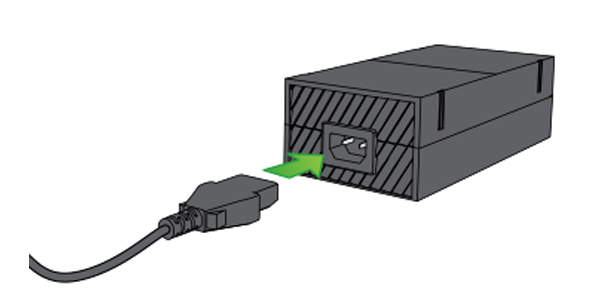
If you've got a large amount of entertainment systems constantly hooked up to your TV, then there's a good chance you'll need to be as frugal as possible when it comes to available power sockets. Thankfully, there's a neat little tip that you can make use of if you still use both the Xbox One and Xbox 360. The 360 and Xbox One both use a power brick, but they are not cross-compatible. However, the cable that connects the bricks to the wall are identical. Because of this, it's possible to just connect and disconnect from the bricks, rather than having to do it at the wall. Even better; just get a proper power strip.

5. Use The Console As An HDMI Hub

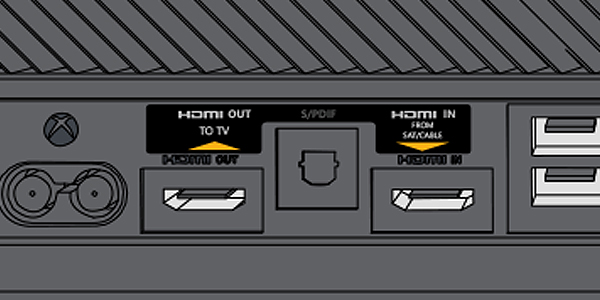
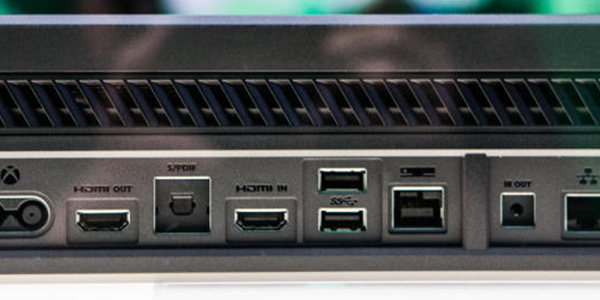
Speaking of having too many devices attached to your television, the Xbox One makes for a great hub to keep everything together. Along with having the usual HDMI-out capability, the console also supports HDMI-out. This means that you can run devices through your Xbox One, without the need to connect them directly to the television. While this will be mainly used for video input from a TV box, it's actually possible to run a PlayStation 4 through the Xbox One. In fact, you could even be playing Ori & The Blind Forest with your Xbox One controller, while a friend plays a snapped Bloodborne on the other half of the screen.

4. Silent Reboot

This isn't so much something to do, as something cool that you can now be aware of. The April update earlier this year added a number of interesting features, such as Blu-ray support for 50 Hz, firmware updates and improvements to the friends list. One of the more subtle additions is the silent reboot. What this means is that, if your Xbox One is in Instant On mode, then an update download can occur automatically before returning to standby mode. Because of this, there's no longer a need to power on the Xbox One after it has updated.

3. Customise Your Dashboard

https://www.youtube.com/watch?v=VpzeP7yLliU The Xbox One's Dashboard is something of a mix between the Xbox 360 and the Windows 8 Metro system, with its tile-based system. Don't simply be content with the default Dashboard though; Microsoft have included a number of customisation options that will help you to personalise your console. A key way to customise the Dashboard is by pinning your favourite apps to the home screen. Just move your cursor to the app you want to pin, then press the View button on the controller. From there, you'll have the option appear to 'Pin To Home.' If you want, it's also possible to change the colour from the default green. Just go into 'My Profile', then select 'Choose Colour.'

2. Xbox Fitness

https://www.youtube.com/watch?v=rLKFz4NmC28#t=128 I'm not saying that Xbox Fitness is something you didn't know about. Rather, I'm saying that it's probably something that you've chosen to ignore - especially in a post-Kinect world. However, it's well worth trying out, as it's the best implementation of a fitness aid into a console yet. The Xbox Fitness app has 30 exercises free to anyone with an Xbox Live Gold account. Within, you'll be given access to a large number of introductory workouts from fitness celebrities like Tracey Anderson and Jillian Michaels. Best of all, they're completely free of charge for the first six months. The Kinect is a hugely useful tool, and is able to keep track of your heart rate and muscle usage, all while giving estimates on how many calories you're burning each session. Take that, Wii Fit.

1. Mirror Your Tablet's Screen

https://www.youtube.com/watch?v=zny7iu_hDXU It's all very well being able to stream individual media files to your Xbox One, but sometimes it's just more useful being able to have the entire screen mirrored on your television. Thankfully, with the console's HDMI-in capabilities, this is a possibility. To achieve this, you'll first need a Miracast Dongle plugged into your Xbox One HDMI input. From there, you can just tell your Xbox to 'Watch TV', and the mirrored screen of your tablet will appear. The Miracast dongle can mirror the screen of any Android device directly to your Xbox One, which is great for browsing online or making use of any specialist applications that aren't directly compatible with the console. What's your favourite trick for the Xbox One? Are there any we missed out? Let us know in the comments below!

In this post: 
XBox One
 
First Posted On: 
Contributor
Contributor

Tom Butler hasn't written a bio just yet, but if they had... it would appear here.