12 Things You Didn't Know You Could Do With Your PS4

Tips and tricks that will help you get the most out of your console!
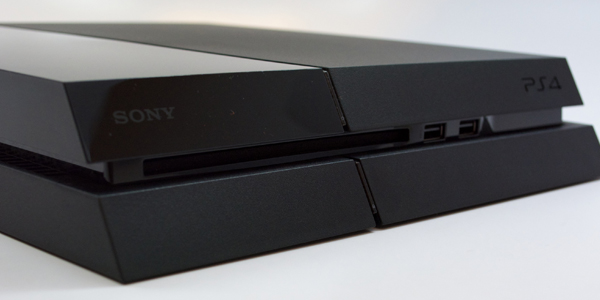
It's close to a year since the PlayStation 4 was released in the West, and those 11 or so months have gone about as well as Sony could have hoped. With regards to competition with Microsoft, the PlayStation 4 has beat out the Xbox One commercially, and Sony's console has topped out the global console sales list this year. The PlayStation 4 has been marketed less as an all-in-one entertainment system than the Xbox One, but that's not to say Sony's console can't hold its own outside of gaming. From integrated live streaming to the cloud features of PlayStation. Now, the PlayStation 4 has plenty to offer. Along with the usual advertised stuff, the PlayStation 4 is also filled with a number of handy features that aren't immediately obvious. Just like the PlayStation 2 and PlayStation 3 before it, Sony seem to have taken pride in having their latest console crammed with secrets. This list takes a look at 12 things you probably didn't know you could do with your PlayStation 4. From hidden away options to neat tips that will greatly improve your user experience, each of these entries will help you get the most out of your console.

12. Log In With Facial Recognition

https://www.youtube.com/watch?v=3Jg0zb8Au4s Having a camera watching your every movement might be Microsoft's shtick, but that's not to say Sony aren't having their slice of facial recognition pie. What some PlayStation 4 owners might not know, is that they can make their console equally as spooky as the Kinect-powered Xbox One. As you've probably guessed, you'll first need a PlayStation 4 camera. Once you've got it attached to your console, go into your Settings, then Login Settings. After that, navigate down to Face Recognition and enable it. With it enabled, you'll be able to automatically log into your console using facial recognition alone!

11. Easily Take Screenshots

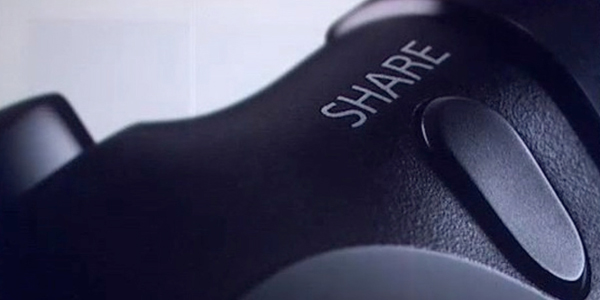
The ability to take in-game screenshots is nice, but what's the point if the whole process is excruciatingly fiddly? It's not easy to make a record of that incredibly daring jump on Assassin's Creed if you have to do the default action of holding down the Share button for a few seconds. Fortunately, it's possible to change how your Share button works. First of all, tap the Share button once, in order to open up the Share menu. Following this, press the Options button, then Share Settings and select Share Button Control Type to change how it functions. One of the options allows you to set it so that taking a screenshot is as simple as tapping the Share button once.

10. Charge Your Controller From Standby Mode
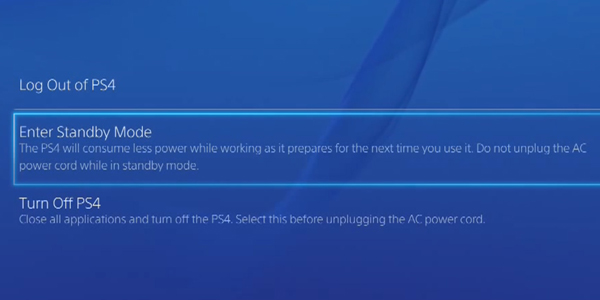
The Dualshock 4 is a great controller, but the battery life isn't outstanding. At roughly seven hours from full charge, it can be a pain ensuring that the PlayStation 4's controller has enough juice to last through a lengthy gaming session. Rather than having to play with the wire attached, or leaving the console on while it charges your controllers, there is a much better (and energy efficient) way. Just go into your Settings, then to Power Save Settings. After that, look for the 'Set Functions Available in Standby Mode' section, and allow the 'Supply Power from USB Ports' function. This will allow you to just leave your controllers connected when you've finished with your console, and they'll fully charge while it's in Standby Mode.

9. Manage Your Data

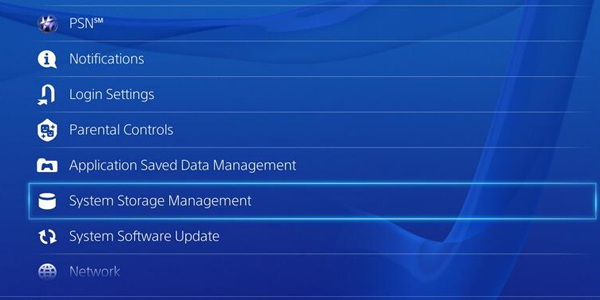
It's always nice having a plug and play console, but the closed system format does mean that adding more space to store your data isn't just a simple case of adding more internal hard drives. Because of this, managing your data is important. Of course, between HD movies, game saves and downloadable titles clogging up your system, it can be difficult to keep track of everything. In acknowledgement of this, Sony have included a utility that makes it simple to visualise exactly what it is that's filling up your device. To access it, go into Settings then System Storage Management. From there, you'll be able to see everything on your hard drive listed by category, allowing you to easily clear out what you don't need.

8. Switch Between Applications With Ease

The Xbox One has a great system for swapping between applications, but this is one area that the PlayStation 4 is somewhat lacking. That's not to say it's impossible to multitask though, as there's a handy feature that Sony really ought to advertise more. If you're in the middle of a slow Facebook conversation with your friend, but really want to play a bit of Destiny at the same time, there's no reason not to do both. With both a game and the web browser open, you can just double-tap the Home button, which switches between the last two applications that you've been on.

7. Play PS4 Games On Your Vita

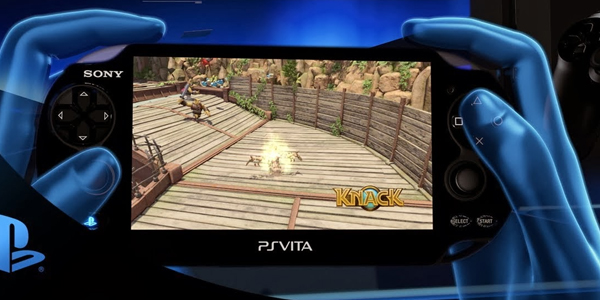
Being able to play your home console games on the PlayStation Vita was one of the strongly advertised features of the PlayStation 4, although it's one thing that many gamers have yet to try out. As long as you own both the PlayStation 4 itself and the portable Vita, you can (in theory) play any game from your library on the go. To set up remote play, go into Settings, then PS Vita Connection Settings. From there, you can select Add Device and enable your Vita to be paired with the console. While some might have foggy visions of playing Infamous: Second Son on the top of a mountain somewhere, the functionality is best for those mornings when you fancy a few games of FIFA, but don't want to leave your bed.

6. Find Out How Rare Your Achievements Are
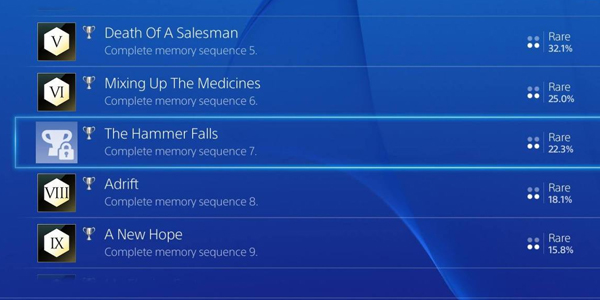
For those who love achievements in their games, the PlayStation 4 is paradise. Like the PlayStation 3, Sony's latest console makes use of the trophy system, which has always felt more strangely satisfying than Microsoft's number-based Gamerscore. It's always nice to receive a Gold Trophy for accomplishing something in a game, but there's always that sneaking suspicion that everyone else easily managed the exact same thing. With the PlayStation 4, you'll no longer need to guess. When you view your trophies, there's a percentage on the right that lets you know exactly how rare each achievement is, along with a description that goes up to 'Ultra Rare'.

5. Save Power

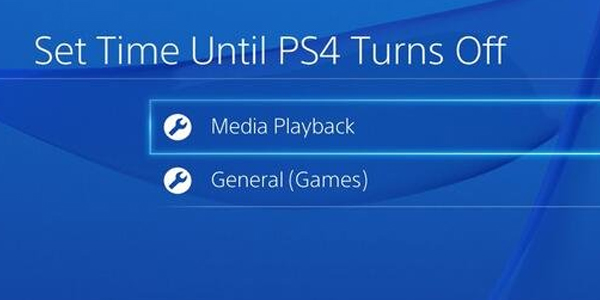
With increased awareness of the importance of energy efficiency, more and more devices are being made with power saving in mind. The PlayStation 4 is no exception, and it's packed with features that will serve to lessen your weekly electricity bill. If you go into Settings, you'll find the Power Save Settings menu. Within this menu, it's possible to set everything from whether you want your PS4 to shut down or enter standby mode, to what you actually want it to do while it's in standby. There's even an option to have the Dualshock 4 controller turn off after a set amount of time.

4. Control The Console With Your Voice

https://www.youtube.com/watch?v=zmz5QxOpf7k We've already gone over how the PlayStation 4 can resemble the more famous Kinect in its functionality, by logging you in automatically using facial recognition. This isn't the only similarity though, as it's also possible to issue voice commands to the console. First off, you'll need to go into Settings then System. In that menu, you can activate voice control functionality by selecting Operate PS4 With Voice. Best of all, you won't even need the official PS4 camera for this, as you can use any microphone connected to the console (including a headset).

3. Use More Than Just The Official Headset

Speaking of headsets, the PlayStation 4 is great in that it supports a wide range of peripherals outside of just the official Sony offerings. This extends to any gaming headsets you might own, as just about every headset on the market works on the PlayStation 4. This extends to voice chat as well as the audio, and optical out works exactly the same as it did on the PlayStation 3. It's even possible to just plug a headset or headphones into your DualShock 4's headphone port if you're lacking in cable length. To set up your third-party headset, just go into Settings, then Sound and Screen. In Audio Output Settings, you can select Output To Headphones and select the All Audio option.

2. Backup Your Data

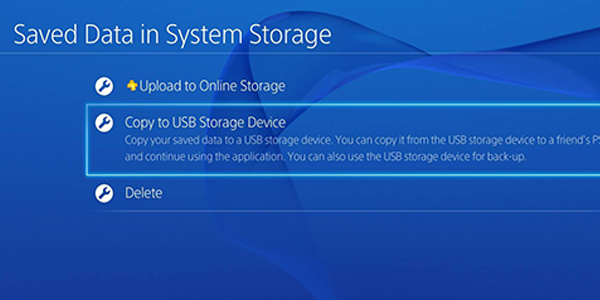
It's not just data management that the PlayStation 4 does well. The console also makes it easy to actually store certain files outside of the internal hard drive. It's possible to store data on USB storage, or the PSN Cloud. As well as saving space, this also means you'll have a reliable backup for your game saves, in case there's ever a problem with your hard drive down the road. To set it up, go into Settings then Application Saved Data Management. While in this section, it's possible to set up how your console interacts with the PSN Cloud, as well as any connected USB devices.

1. Type With The Dualshock 4 Gyro

https://www.youtube.com/watch?v=Oe2byYvKTK8 Typing with a controller, as a general rule, sucks. Flicking through a QWERTY keyboard using an analog stick is painfully slow, and completely unintuitive. In one of the best hidden features on the PlayStation 4, it's possible to make use of a unique system to type out messages. While using the on-screen keyboard, if you click the right stick then a small circle will appear. You can move this circle using the sixaxis gyro inside your Dualshock 4, in order to select different keys far quicker. It takes a bit of getting used to, but once you've mastered the system, it's a surprisingly fast way to type with. Sony have also recently added the ability to do a similar thing, but with the controller's touch screen instead. What's your favourite PlayStation 4 tip? Are there any we missed out? Let us know in the comments below!

In this post: 
PS4
 
Posted On: 
Contributor
Contributor

Tom Butler hasn't written a bio just yet, but if they had... it would appear here.