PS4: 15 Cool Tips, Tricks & Secrets You Must Try
Think you've seen everything Sony's baby has to offer?
Thanks to being out for just over a year, fans have put together quite the list of sought-after features they want Sony to implement into the PS4 going forward, but that doesn't account for all the little-known tips, tricks and secrets already out there yet to become common knowledge. Chances are you remember Microsoft's monumental failure of a reveal back in 2013, but in amongst all the hoopla surrounding voice-activated TV channels and sports games was a strong focus on hammering home the idea of the Kinect 'revolutionising your living room'.
Instead what ended up tanking the Xbox ship wasn't just that missed-mark introduction to the tech, but the fact that when consumers got their hands on it, it just didn't work. Sony instead opted to play it safe, focussing on the tried n' true elements of the industry that they knew people held dear, like a strong game library and fan-pleasing advertising. In doing so although the PS4 is a processing powerhouse, there's been a move away from showcasing the more fancier tricks under the hood that easily make the machine even more special.
It's time to change that, and introduce the wider world to the huge array of things possible right now. Just for fun: Give yourself a starting score of zero and add a point every time you already knew something - then let us know in the comments how well you were already acquainted with Sony's flagship console.
15. Charge The Dualshock 4 With Your Phone Charger
The newest Dualshock is easily the finest iteration Sony have put out yet, adopting the thick-set design of Microsoft's Xbox controllers to great effect - but in loading in so much functionality through touch-pads, LED lights and pressure-sensitive triggers it makes for one hell of a drain on the battery. Luckily the DS4 can be fully charged away from the console - literally anything with a USB power source will provide the right amount of juice, just watch for the controller's light glowing yellow until it's finished. The DS4's port is a micro USB, so your phone might already have the requisite cable.
14. Turn Your TV On With The PS4 (And Vice-Versa)

13. Control The PS4 Dashboard And Apps With Your TV Remote
Branching off from the idea of controlling the console with your TV inputs, if you have something like one of LG's new 'Magic Remotes' or a Sony-specific model that was released in the last year or so, chances are you can control the PS4's dash with just the remote itself. It's perfect for cycling through the tiles on-screen, and with apps like Amazon Prime, Netflix and Plex etc. offering libraries of content, if you combine this with the previous step, you can flick over to your console from the input list, boot it up automatically and use any number of apps all without having to flick on the Dualshock 4 whatsoever.12. Use Your Phone As A Keyboard

11. Use Voice Commands Through The Headset Mic
Beating Microsoft at their own game without even breaking a sweat, the PS4's voice commands aren't tied to their optional camera accessory either. Do you remember that headset you got with your console? Well, turns out there's a tiny microphone tucked away on the volume slider, meaning that providing you've got it plugged into the bottom of your DS4, there's a whole host of commands the console will respond to providing you address it with "Playstation" followed by any of the above. Reportedly these work consistently well, especially since the last firmware update refined how well it can understand phonemes and accents even more, and although hardly any games make use of voice commands you can actually whistle to attract guards in Thief - a very neat addition lost on a pretty naff game.10. Share Your Game Library With Your Friends

9. Know How To Reset Your Dualshock 4
Here's one you should only try if the circumstance dictates, but as with any new-fangled piece of tech, there's going to be unforeseen errors that happen along the way - especially as new firmware updates roll out that shake everything up. So say you've got a DS4 that won't pair up, or any part of its functionality is unresponsive, simply grab a pin or other thin implement and gently push it into the hole shown above to reset it's internal memory and - hopefully - restore it to working order again.8. Use Your PS Vita As Another Controller

7. Switch Up The Share Button Functionality

6. Double Tap App-Switch

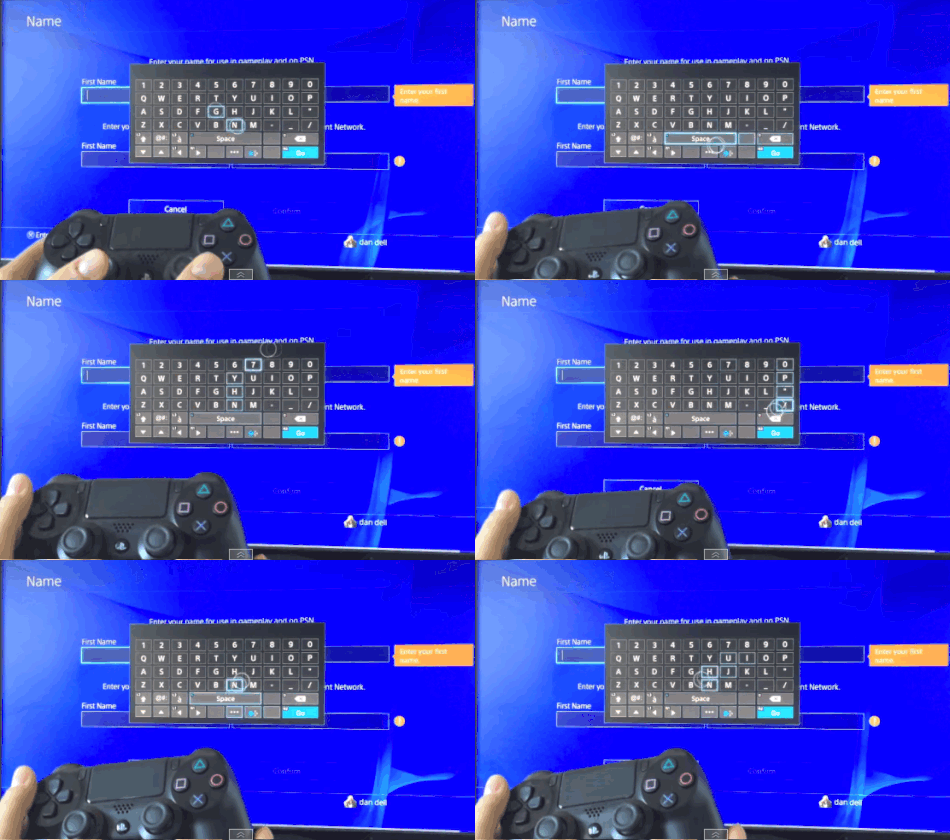
5. Motion-Controlled Typing
4. Light Bar Brightness Reduction
Technophiles have since dove into the inner-workings of the controller's battery life and realised that although gamers continue to begrudge having the LED light on at all, it's actually only responsible for a few minutes worth of gameplay, if that. Instead it's the wireless and rumble functions that sap battery far faster - but still Sony included in their last firmware update the ability to turn down the brightness of this thing anyway. Simply go into the Dashboard's main Settings, then Devices, Controllers and scroll down to 'Brightness of Dualshock 4 Light Bar'. You can switch it from the default Bright to Medium and Dim, and although these don't have a great deal of difference, it's still a look towards some day you'll be able to turn off such a pointless function altogether.3. Know How To Fully Power Down/Reset The Console

2. Rest Mode Controller Charging
So you can charge your controllers with a phone charger, PC/Mac port and anything else you can think of, but of course the console itself provides that function by default. Something that was tweaked in the last update was the standby function itself; changing the name to 'Rest Mode' (it sounds more eco-friendly apparently) and the allowance for the system to provide power to the USB ports for a defined three hours before resorting to its normal resting state. This was mainly done to put fears of the system chewing through your electricity bill overnight to rest, so if the idea of leaving your controller or other device plugged into the PS4 for a lengthy amount of time was cause for concern, knowing it'll only be 'active' (in the barest sense possible) for three hours is a welcome comfort. Go to Settings > Power Save Settings > 'Set Functions Available in Rest Mode' to enable and change this.1. Download Your Friends' Purchases (Without Worrying About Hard Drive Space)
